xCAD framework can be used to create out-of-process (stand-alone) applications, such as Console, Windows Forms, WPF etc. in .NET Framework or .NET Core.
SOLIDWORKS
Call SwApplicationFactory.Create to connect to SOLIDWORKS instance in one of the following ways:
- To the specified SOLIDWORKS version
- To the latest SOLIDWORKS version (set the value of vers parameter to null)
- By optionally providing additional arguments
In order to connect to existing (running process of SOLIDWORKS) use SwApplicationFactory.FromProcess method and pass the pointer to Process
cs
using SolidWorks.Interop.sldworks;
using System;
using System.Threading.Tasks;
using Xarial.XCad.Documents.Extensions;
using Xarial.XCad.Documents.Structures;
using Xarial.XCad.Enums;
using Xarial.XCad.SolidWorks;
using Xarial.XCad.SolidWorks.Documents;
using Xarial.XCad.SolidWorks.Enums;

namespace Xarial.XCad.Documentation
{
    class Program
    {
        static void Main(string[] args)
        {
            using (var app = SwApplicationFactory.Create(SwVersion_e.Sw2020, ApplicationState_e.Background))
            {
                ISldWorks swApp = app.Sw;
                Console.WriteLine(swApp.RevisionNumber());

                var doc = app.Documents.Open(@"D:\model1.SLDPRT", Documents.Enums.DocumentState_e.ReadOnly);

                var swModel = (doc as ISwDocument).Model;

                Console.WriteLine(swModel.GetTitle());

                app.Close();
            }
        }
    }
}
Refer Console Model Generator example which demonstrates how to access xCAD.API from .NET Core console.
SOLIDWORKS Document Manager
In order to use SOLIDWORKS Document Manager API, it is required to request a Document Manager license key.
Inventor
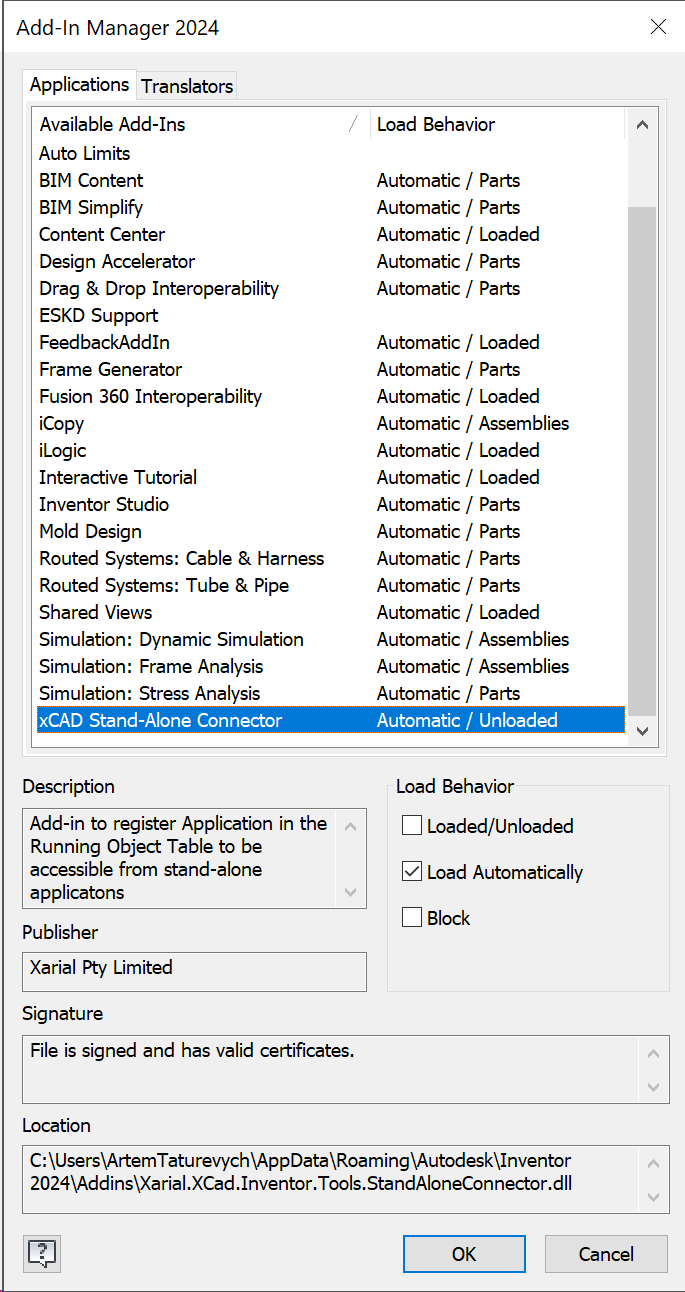
In order to enable the support of multiple sessions of Inventor application, install the add-in from the nuget package installation
- Copy files from the tools\StandAloneConnector folder in the Xarial.XCad.Inventor nuget package installation folder
- Place files into the %appdata%\Autodesk\Inventor {Version}\Addins
- Start Inventor application. The following message is displayed
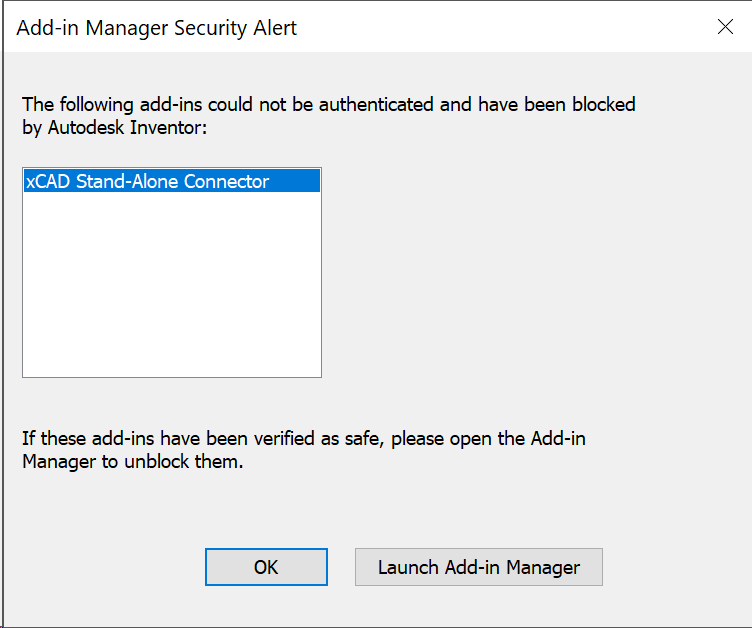
- Click Launch Add-in manager button and unblock the add-in